Notifications
FeatureFlags can send project change notifications to Slack by using incoming webhooks.
What it is
Notifications let a team see feature flag and value changes without watching the FeatureFlags UI all the time. After a notification channel is configured and attached to a project, FeatureFlags posts updates to Slack when somebody changes flags or values in that project.
Typical use cases:
tracking who enabled or disabled a flag
seeing value override changes in shared channels
auditing project changes during releases
testing a webhook before using it in production
Currently, notification delivery uses Slack incoming webhooks.
How it works
There are two levels of configuration:
Global notification channels — reusable channel definitions with a name and Slack webhook URL
Project channel selection — each project can use one or more of the global channels
A change in a project is sent to every notification channel selected for that project.
Configure a notification channel
Open the Notification channels page in the UI and create a channel with:
a human-readable name
a Slack incoming webhook URL
You can also use the Send test button before saving to verify that the webhook works.

Suggested naming examples:
team-alertsrelease-notificationsbackend-flags
Use notification channels in a project
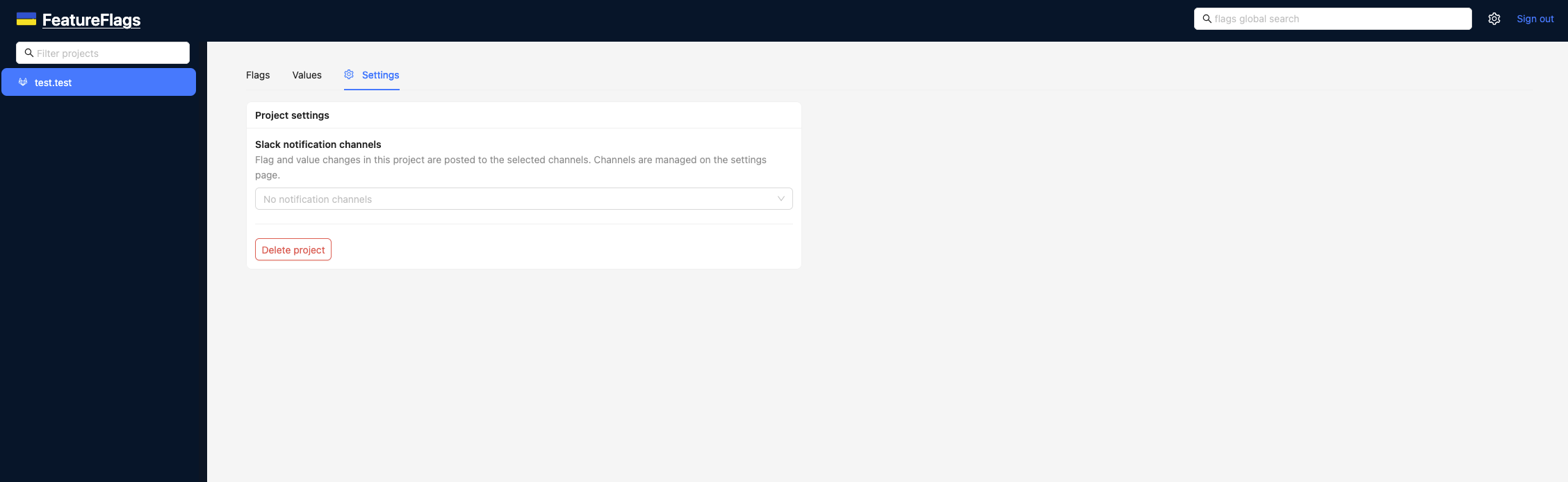
After a channel is created, open the target project’s settings and select one or more channels in Slack notification channels.
Once selected, all supported changes in that project will be posted to the chosen Slack channels.
What changes are sent
FeatureFlags sends notifications for project flag and value updates, including common actions such as:
enabling a flag
disabling a flag
resetting a flag
deleting a flag
enabling a value
disabling a value
resetting a value
deleting a value
updating conditions and value overrides
The message includes the changed entity name, the project name, and the user who made the update. When conditions are involved, the rendered condition details are included in the Slack message.
Slack message example
A Slack message is posted to the selected channel after a change is made.
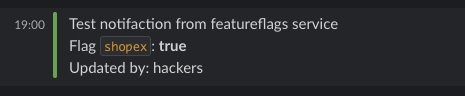
A test notification is also available from the notification channel form. It is useful for validating webhook access and confirming that the Slack destination is correct before attaching the channel to projects.
Recommended setup flow
Create a Slack incoming webhook
Add a notification channel in FeatureFlags
Use Send test to verify delivery
Open a project and select the channel in project settings
Change a flag or value in that project
Verify the message in Slack
Notes
Notification channels are managed globally and reused across projects
A project can send notifications to multiple Slack channels
If no channel is selected for a project, no Slack notifications are sent
Webhook URL validation requires an
http://orhttps://URL